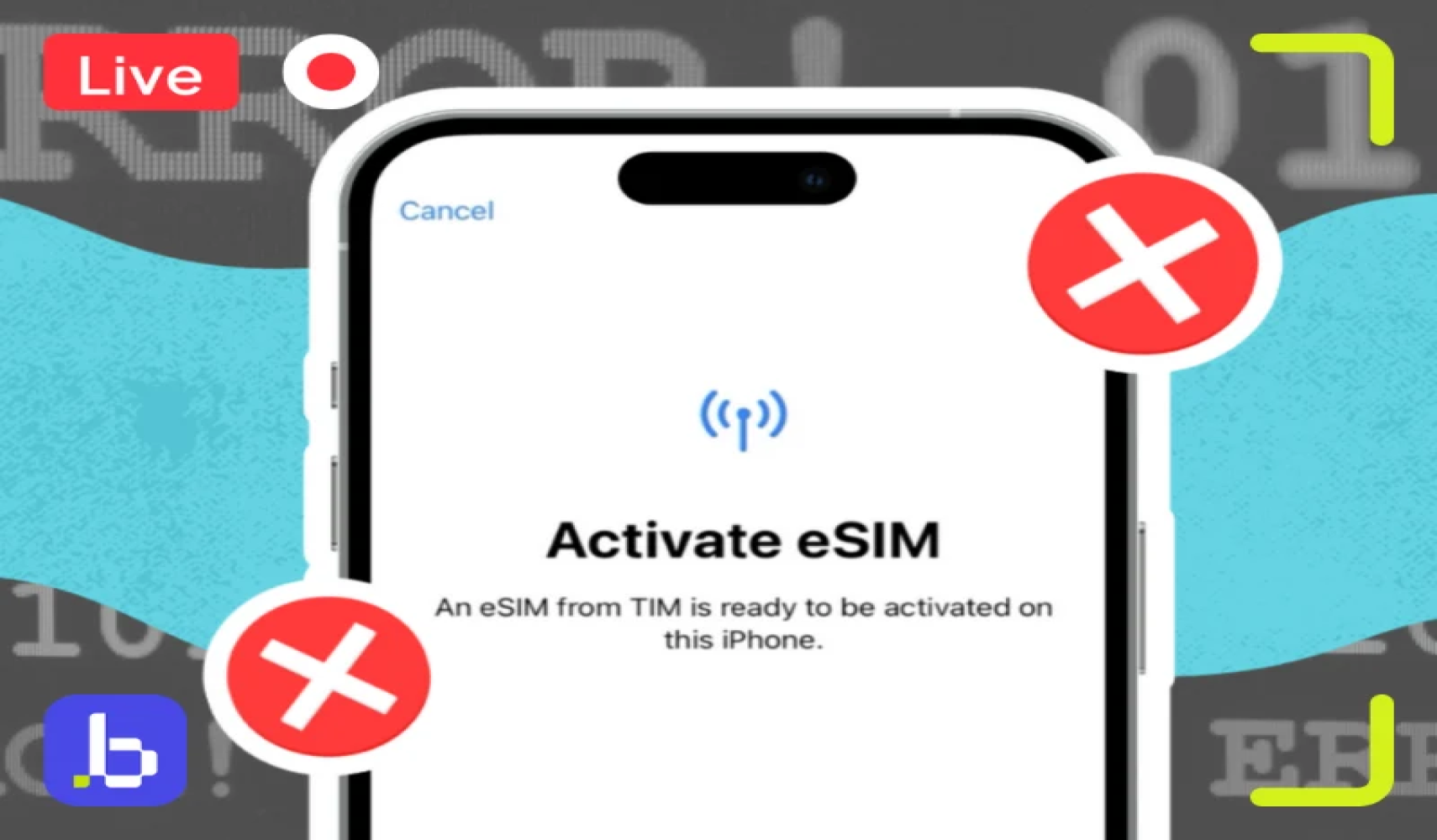
eSIM Not Working? Most Common Activation Problems (and Fixes)
eSIM Not Working? Most Common Activation Problems (and Fixes)
You landed, you’re tired, and the one thing you planned ahead for is showing “No Service” instead of bars. An eSIM not working is one of the most common travel frustrations in 2026, and the good news is that almost every case comes down to one of a small handful of fixable causes. Before you assume the eSIM itself is broken, work through this list. Most of these take under two minutes to fix.
Why an eSIM Not Working Usually Isn’t a Real Network Problem
An eSIM isn’t a physical card you can reseat or blow into like the SIM trays of decades past, it’s a digital profile installed on your phone, and that installation depends on a working internet connection, correct phone settings, and a QR code or activation code that hasn’t already been used. Most cases of an eSIM not working aren’t actually network failures. They’re small configuration mismatches that are easy to miss when you’re activating a new line in an unfamiliar airport at 11pm. If you haven’t picked a provider yet.
The 7 Most Common eSIM Problems (and How to Fix Them)
1. The QR Code Was Already Scanned
Every eSIM QR code or activation code is designed to be used once. If you scanned it during a test at home, forwarded the email to another device, or a family member’s phone picked it up first, the code is now spent, and scanning it again won’t install a working profile.
Fix: Check your provider’s app or account dashboard for a “manual installation” option, which typically gives you an SM-DP+ address and activation code you can enter directly in your phone’s eSIM settings instead of rescanning. If the code shows as already used, contact your provider’s support, most reissue a fresh one within minutes.
2. The eSIM Line Isn’t Set as the Active Data Line
Installing an eSIM doesn’t automatically make it the line your phone uses for data. If your phone still has your home SIM or a previous eSIM selected for cellular data, the new eSIM will sit installed but unused, and this alone explains a large share of “eSIM not working” reports right after setup.
Fix: On iPhone, go to Settings, then Cellular (or Mobile Data), then Cellular Data, and select the new eSIM line. On Android, go to Settings, then Network & Internet, then SIMs, and set the new eSIM as the Mobile Data line.
3. Data Roaming Is Turned Off for the eSIM Line
Most travel eSIMs work by roaming onto a local partner network, so if data roaming is switched off for that specific line, you’ll see full signal bars but zero actual data.
Fix: On iPhone, go to Settings, then Cellular, tap the eSIM line, and turn on Data Roaming. On Android, go to Settings, then Network & Internet, then SIMs, select the eSIM, and enable Roaming. This is easy to miss because roaming is typically off by default on a newly installed line, even though the provider’s setup instructions assume it’s on.
4. Network Mode Is Set to Manual Instead of Automatic
Occasionally a phone gets stuck trying to connect to a network operator that isn’t actually part of your eSIM’s coverage agreement, especially in border regions or countries with several competing carriers.
Fix: In your eSIM line’s network settings, make sure network selection is set to Automatic rather than a manually chosen operator. If it’s already automatic and you’re still stuck “Searching,” toggle Airplane Mode on for 10 seconds and back off, this forces the phone to rescan and reselect a network from scratch.
5. The Phone Is Carrier-Locked
Phones bought on a contract plan, especially in the US, are sometimes still locked to the original carrier even if they’re fully paid off. A locked phone can often install an eSIM profile just fine but will refuse to actually connect to any other network’s data.
Fix: Check your lock status before you travel, not after. On iPhone, go to Settings, then General, then About, and look for “No SIM restrictions,” which confirms the phone is unlocked. If it’s locked, contact your carrier for an unlock, most will do this free once a device is paid off, but it can take a few days to process.
6. The eSIM Hasn’t “Woken Up” on the New Network Yet
Some eSIMs, particularly plans with a validity window that starts on first use rather than on installation, need a brief window after landing to register with the local network for the first time. This can look identical to a failure for the first few minutes.
Fix: Give it 10 to 15 minutes after landing before troubleshooting further, and make sure Airplane Mode was off and roaming was on during that window. If you’re still at “No Service” after 20 to 30 minutes, move on to the other fixes on this list.
7. Too Many eSIMs Are Already Installed
Most phones cap the number of eSIM profiles they can store, even though only one or two can be active at a time. Frequent travelers who install a new eSIM for every trip without deleting old ones eventually hit that ceiling.
Fix: Go to your eSIM settings and delete profiles from trips you’ve already finished, you can always reinstall a paid plan later using the manual SM-DP+ details if you kept them saved. iPhones typically support around 8 to 10 stored eSIMs depending on the model and iOS version; Android limits vary by manufacturer.
Quick Reference: Symptom to Likely Cause
An eSIM not working shows up differently depending on which of the seven causes above is behind it:
|
What you’re seeing
|
Most likely cause
|
|
“No Service” right after install |
Wrong line set for cellular data (#2) |
|
Full bars, no actual data |
Data roaming switched off (#3) |
|
Stuck on “Searching” |
Network mode not set to automatic (#4) |
|
QR code won’t scan or shows “invalid” |
Code already used (#1) |
|
Data works on WiFi calling but not elsewhere |
Phone carrier-locked (#5) |
|
Works, then stops working entirely |
eSIM profile limit reached, newest one rejected (#7) |
|
Nothing happens for the first few minutes |
Normal first-connection delay (#6) |

The Guide to Using an eSIM for Europe Travel
05 Oct 2026
What Is an eSIM The Guide to eSIM Technology
05 Oct 2026
Which Devices Support eSIM
05 Oct 2026
Troubleshooting Common eSIM Activation Issues
06 Jul 2025